Roblox isn’t just a game, it’s a platform where millions of developers create experiences, and animations are the backbone of making those worlds feel alive. Whether you’re building a combat system that needs precise weapon swings, designing custom emotes for your avatar, or crafting cinematic cutscenes, understanding Roblox animation separates amateur projects from polished, professional experiences.
Animation in Roblox has evolved significantly since the platform’s early days. The introduction of the Animation Editor in Roblox Studio, combined with support for third-party tools like Blender, has democratized animation creation. But with that accessibility comes complexity: animation priority systems, keyframe management, Lua scripting integration, and performance optimization all demand attention.
This guide breaks down everything from the fundamentals of how roblox animations work to advanced techniques used by top developers in 2026. You’ll learn the tools, workflows, and optimization strategies that actually matter when shipping a game or experience on the platform.
Key Takeaways
- Roblox animation is built on a skeletal system using keyframes and Motor6D joints, with support for multiple simultaneous animation tracks across priority levels (Core, Idle, Movement, Action, Action2-4) to layer complex movements without conflicts.
- The built-in Roblox Animation Editor works well for single-character animations, while Moon Animator provides professional cutscene tools, and Blender offers advanced features for complex creatures and stylized motion.
- Smooth animation transitions, proper easing curves, and accurate RootPart movement are critical details that separate polished Roblox animations from stiff, amateurish ones that break immersion.
- Optimize animations by auditing keyframes ruthlessly, limiting simultaneous tracks, and testing on both R15 and R6 rig types to ensure cross-compatibility and prevent performance issues across mobile and desktop platforms.
- The Animation Editor’s priority system requires placing custom animations at higher priority levels (Action tier) to prevent default animations from overriding your custom movements, a mistake that commonly frustrates new developers.
What Is Roblox Animation and Why Does It Matter?
Understanding the Roblox Animation System
Roblox animation is a system that controls the movement of character models (and other objects) through a series of poses stored as keyframes. The platform uses a skeletal animation system where a rig, essentially a hierarchy of parts and joints, defines how a model can move. When you play an animation, Roblox interpolates between these keyframes to create smooth motion.
Every Roblox character uses the Humanoid object, which comes with default animations: walking, running, jumping, climbing, falling, and idle states. These defaults work fine for basic experiences, but they’re generic. Custom animations let developers create unique movement styles, combat mechanics, and character personalities that align with their game’s vision.
The animation system supports multiple tracks playing simultaneously, each with different priority levels. This layering means a character can run (core priority) while simultaneously playing a weapon-holding animation (action priority) and displaying an emotion overlay (action4 priority). Understanding this hierarchy is critical for avoiding animation conflicts.
The Role of Animations in Gameplay and User Experience
Animations directly impact how players perceive and interact with a game. In combat games, the difference between a snappy 0.3-second sword slash and a sluggish 0.8-second swing completely changes the feel and balance. First-person shooters need tight ADS (aim down sights) animations that don’t obscure the player’s view. Social hangout experiences rely on expressive emotes and custom walks to let players showcase personality.
Poor animation implementation shows immediately. Clipping issues where body parts pass through objects, janky transitions between movement states, or animations that don’t sync with hit detection all break immersion and frustrate players. Performance matters too, unoptimized animations with excessive keyframes or too many simultaneous tracks can tank framerate, especially on mobile devices where a significant portion of Roblox’s audience plays.
The best Roblox experiences use animations intentionally. Attack windups telegraph danger to opponents, giving skilled players reaction windows. Idle animations add life to NPCs in roleplay games. Victory dances and celebration emotes create memorable moments that players share. Animation isn’t just visual polish: it’s a core gameplay and UX tool.
How Roblox Animations Work: Core Concepts Explained
Rigs, Bones, and Humanoid Models
A rig in Roblox is the skeletal structure that defines how a model can move. The standard R15 rig (15 body parts) and older R6 rig (6 body parts) are the two primary humanoid configurations. R15 offers more articulation with separate upper and lower arms, upper and lower legs, and individual hand parts. R6 is simpler with single-piece limbs but limits animation complexity.
Each part in a rig connects through Motor6D joints, which define parent-child relationships and allow rotation around specific axes. When you animate, you’re essentially adjusting the C0 and C1 properties of these Motor6D joints over time. The RootPart serves as the anchor point, all other parts move relative to it.
Custom rigs extend beyond humanoids. Developers create rigs for creatures, vehicles, and mechanical objects by building hierarchies of parts connected with Motor6D joints. A dragon might have a spine chain, wing joints, and jaw articulation. These custom rigs require more manual setup but enable unique character designs that standard humanoids can’t achieve.
Keyframes and Animation Tracks
Keyframes are snapshots of a rig’s pose at specific timestamps. When you create an animation, you position the rig, set a keyframe, move to a different point in the timeline, adjust the pose, and set another keyframe. Roblox interpolates between these keyframes to generate smooth motion.
The Animation Editor in Roblox Studio displays keyframes on a timeline, with each joint getting its own track. You can adjust interpolation curves, linear creates constant-speed movement, while easing curves add acceleration and deceleration for more natural motion. Cubic interpolation smooths complex movements but can introduce unintended drifting if keyframes are spaced poorly.
Animation tracks are the playback containers for animations. When you load an animation in-game using Lua, you create an AnimationTrack object that controls playback speed, looping, and blending. Multiple tracks can run simultaneously, each affecting different body parts or priority levels. A common pattern is layering an upper-body animation (reloading a gun) over a lower-body animation (running).
Animation Priority Levels and Layering
Roblox animations use a priority system to determine which animation controls a joint when multiple animations target the same part. There are four priority levels, from lowest to highest:
- Core: Basic movement like walking and running. Gets overridden by everything.
- Idle: Idle poses and ambient movements.
- Movement: Climbing, swimming, and other locomotion overrides.
- Action: Tool use, attacks, and most custom animations.
- Action2, Action3, Action4: Higher priority tiers for layered complexity.
When two animations with the same priority target the same joint, the most recently played animation wins. When different priorities conflict, the higher priority always controls that joint. This system lets you play a shooting animation (Action) that only affects the upper body while the character continues running (Core) with lower-body movement intact.
Developers often encounter priority conflicts when default animations interfere with custom ones. The solution is either stopping the default animation tracks or ensuring custom animations use a higher priority level. Many streaming guides for animation management emphasize proper priority configuration to avoid visual glitches.
Tools and Methods for Creating Roblox Animations
Using the Roblox Animation Editor
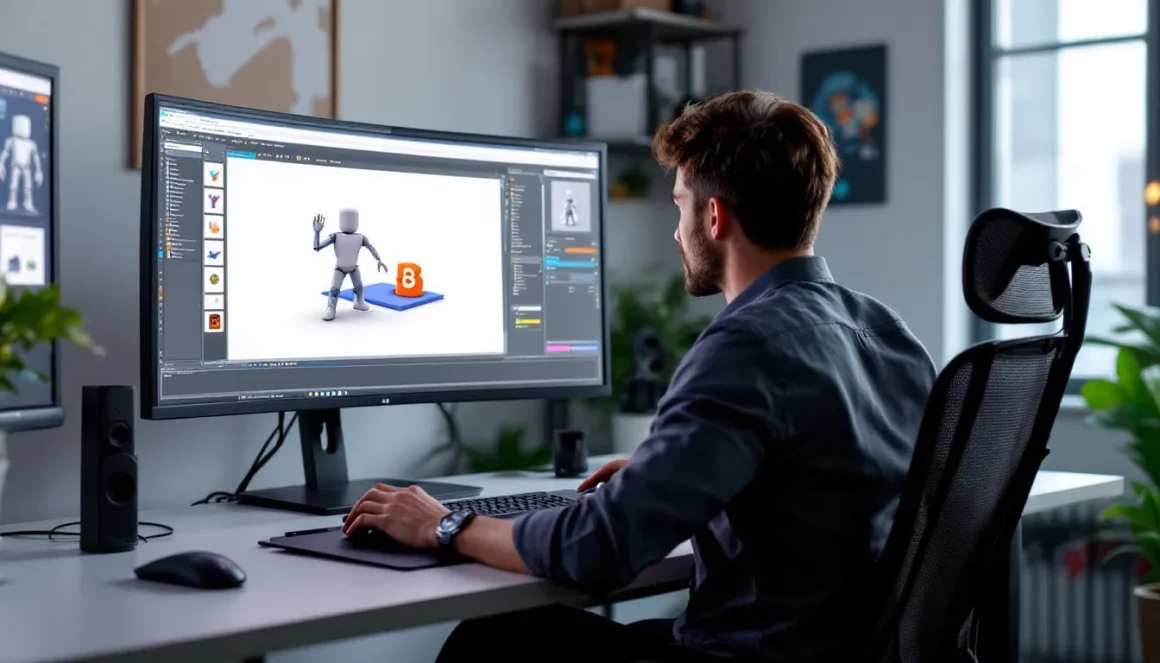
The Roblox Animation Editor is built directly into Roblox Studio, making it the most accessible option for beginners. To open it, select a rig in the workspace and click the Animation Editor button in the Plugins tab. The interface shows a timeline, a pose editor showing all rig parts, and playback controls.
Workflow is straightforward: scrub to a timestamp, adjust part positions and rotations using the move/rotate tools or the property panel, and click the keyframe button (or press K). The editor automatically creates keyframe tracks for each modified joint. You can adjust easing curves by right-clicking keyframes and selecting interpolation types.
The built-in editor has limitations. Complex multi-character scenes are difficult to manage, the IK (inverse kinematics) system is basic compared to professional software, and you can’t easily preview animations with game mechanics like weapon effects or particle systems. But for single-character animations, walks, idles, attacks, emotes, it’s perfectly capable and requires zero additional software.
Third-Party Animation Software: Blender and Moon Animator
Blender is the go-to choice for professional Roblox animators who need advanced features. With proper plugins (like the Roblox Studio plugin for Blender), you can import Roblox rigs, animate with full IK support, use motion paths, and export animations back to Roblox. Blender’s graph editor provides precise control over interpolation curves, and its viewport is significantly faster when working with complex rigs.
The learning curve is steep. Blender is a full 3D modeling and animation suite with an interface that overwhelms newcomers. But for developers creating cinematic cutscenes, complex creature animations, or high-quality combat systems, it’s worth the investment. The modding community tools sometimes provide Blender templates and rig setups that simplify the workflow.
Moon Animator is a Roblox Studio plugin that sits between the built-in editor and Blender in terms of complexity and power. It offers a more refined timeline, better easing curve control, camera animation support, and the ability to animate multiple rigs simultaneously. Moon Animator 2, released in 2024, added onion skinning and improved performance with large animation files.
Moon Animator is particularly popular for cutscene creation and cinematic trailers where multiple characters, cameras, and environment elements need synchronized animation. It’s a paid plugin (around 500 Robux as of 2026) but provides professional features without leaving Studio.
Choosing the Right Tool for Your Project
For simple animations (emotes, basic attacks, idle poses), stick with the built-in Animation Editor. It’s free, integrated, and sufficient for most single-character work.
For complex character work with multiple interacting characters or when you need precise control over animation curves, Moon Animator offers the best balance of power and Roblox integration.
For professional-grade work, especially non-humanoid creatures, highly stylized motion, or when you’re already comfortable with professional animation software, Blender is the clear choice even though the steeper learning curve.
Many experienced developers use a hybrid workflow: prototype quickly in the Animation Editor, refine complex sequences in Moon Animator, and use Blender for hero animations or creatures that need custom rigs.
Step-by-Step Guide to Creating Your First Animation
Setting Up Your Character Rig
Start by inserting a rig into your workspace. In Roblox Studio, go to the Model tab and click “Rig Builder,” then select either R15 or R6. For your first animation, use the standard R15 Block Rig, it’s the most common and compatible with default animations.
Position the rig in a clear area of your workspace away from other objects. Open the Animation Editor plugin from the Plugins tab. When prompted, create a new animation and give it a descriptive name like “TestPunch” or “CustomWave.” The editor will create an empty animation timeline.
Check that all rig parts are properly welded by expanding the rig hierarchy in the Explorer. Each part should have a Motor6D connecting it to its parent. If joints are missing or incorrectly configured, animations won’t work properly. The default rigs come correctly configured, but if you’re using a custom rig, verify joint setup before animating.
Creating and Adjusting Keyframes
Set your first keyframe at timestamp 0 with the rig in a neutral pose, this establishes your starting position. Scrub the timeline to 0.5 seconds (or whatever duration makes sense for your animation). Now adjust the rig: select the right upper arm and rotate it upward, rotate the lower arm slightly, maybe twist the torso. Click the keyframe button or press K to capture this pose.
Continue this process: move forward in time, adjust the rig, set a keyframe. For a punch animation, you might have:
- 0.0s: Neutral pose
- 0.15s: Arm pulled back (windup)
- 0.25s: Arm fully extended (impact point)
- 0.45s: Return to neutral
Play the animation using the playback controls. It’ll probably look stiff and unnatural on the first pass. That’s normal. Go back and adjust keyframes: add rotation to the torso for follow-through, bend the knees slightly during the windup, add a small head movement to show weight shift.
Right-click on keyframes to adjust their easing. For punches and quick actions, use Cubic or Bounce easing on the impact keyframe to add snap. For returns to neutral, Ease Out creates a natural deceleration.
Exporting and Uploading Your Animation
Once satisfied with your animation, save it by clicking the three-dot menu in the Animation Editor and selecting “Save” or “Save As.” The animation saves as an asset in your inventory with an animation ID, a long number that looks like rbxassetid://1234567890.
To use this animation in a game, you need to either own the game or have the animation published to your account. Click “Export” in the Animation Editor. Roblox uploads the animation to your inventory. If you’re working on a group game, change the animation ownership to the group before exporting so all team members can access it.
Copy the animation ID. In a script, you’ll load it using:
local Humanoid = character:WaitForChild("Humanoid")

local Animator = Humanoid:WaitForChild("Animator")

local Animation = Instance.new("Animation")

Animation.AnimationId = "rbxassetid://YOUR_ID_HERE"

local AnimationTrack = Animator:LoadAnimation(Animation)

AnimationTrack:Play()
Test in-game to verify the animation plays correctly. Many first-time animators forget to set animation priority or accidentally leave looping enabled on animations that should play once. These settings are adjustable both in the Animation Editor and via script properties.
Advanced Animation Techniques for Roblox Developers
Custom Animations vs. Default Roblox Animations
Every humanoid character in Roblox loads with default animations for walking, running, jumping, falling, climbing, and idle states. These are functional but generic. Custom animations replace or supplement these defaults to create unique character feel.
To replace default animations, you access the Animate script inside the character. This script contains animation IDs for all default states. Many games include a character customization system that swaps these IDs on player spawn, letting users choose walk styles or emote packs.
A hybrid approach works well: keep default walking and running but add custom animations for attacks, abilities, and emotes. This reduces animation workload while still creating a unique game feel. High-profile Roblox experiences often have instantly recognizable combat animations while using standard or slightly modified locomotion.
When designing custom character animations, consider your game’s tone. A realistic military simulator needs grounded, subtle animations with minimal exaggeration. An anime fighter benefits from exaggerated windups, speed lines implied through pose exaggeration, and dramatic follow-through. Match animation style to game genre.
Scripting Animations with Lua
Animations in Roblox games are controlled through Lua scripts. The basic pattern involves getting the Humanoid’s Animator, loading an Animation object with the correct ID, and calling Play() on the resulting AnimationTrack.
Advanced scripting techniques include:
Animation Events: You can create markers in the Animation Editor that fire signals during playback. A sword swing might fire an event at the exact frame where the blade should deal damage, triggering hit detection code.
AnimationTrack:GetMarkerReachedSignal("ImpactFrame"):Connect(function()
-- Deal damage here

end)
Blending and Fading: The Play() method accepts fade time and weight parameters. Fade time controls how quickly the animation blends in, preventing jarring pops when switching between animations. Weight controls how much influence an animation has, useful for layering.
Speed Manipulation: AnimationTrack.Speed adjusts playback rate. Setting it to 2 doubles speed, 0.5 halves it. This is useful for creating variation in enemy attacks or implementing game mechanics like slow-motion effects.
Procedural Adjustments: After loading an animation, you can script additional movements on top of it. A breathing effect might play an idle animation while scripting slight RootPart position changes to simulate inhale/exhale.
Creating Smooth Animation Transitions
Jarring transitions between animations are a common issue in amateur Roblox games. When a character snaps from running to attacking, it feels cheap and breaks immersion. Smooth transitions require planning.
Use fade times in the Play() method. A 0.1-0.2 second fade works for quick transitions (run to jump), while 0.3-0.5 seconds suits slower state changes (idle to attack windup).
Design animations with compatible start and end poses. If your run cycle ends with the left foot forward, your jump animation should start with a pose that makes sense from that position. Many professional animators create “transition poses” that match across multiple animations.
Animation blending in code helps too. Instead of stopping one animation and starting another, adjust their weights over time:
OldTrack:AdjustWeight(0, 0.2) -- Fade out over 0.2 seconds

NewTrack:Play(0.2) -- Fade in over 0.2 seconds
State machines help manage complex animation systems. Instead of manually controlling every transition in scattered scripts, a state machine tracks the character’s current state (idle, walking, attacking, stunned) and handles transitions and animation playback centrally. Several gaming tech guides cover state machine implementation for animation systems.
Common Mistakes to Avoid When Animating in Roblox
Ignoring animation priority is the number one issue. Beginners create custom animations that get overridden by default walking or idle animations because they used Core priority instead of Action. Always test animations in actual gameplay, not just in the editor.
Too many keyframes creates bloated animation files and makes editing painful. New animators often keyframe every single frame, creating 30 keyframes for a 1-second animation. Roblox interpolates smoothly, you typically need only 3-5 keyframes for simple actions. More keyframes mean larger file sizes and worse performance.
Forgetting RootPart movement causes floating or sliding characters. When a character walks forward, the animation should move the RootPart forward. Otherwise, the character plays a walking animation while standing still, or scripts move the character while the animation doesn’t match, creating a sliding effect.
Poor easing choices make animations feel robotic. Linear interpolation is rarely the answer. Real-world movement has acceleration and deceleration. Use Cubic, Bounce, or Elastic easing to add weight and personality to motion.
Not testing on R6 and R15 if your game supports both rig types. Animations created for R15 don’t automatically work on R6 rigs due to different joint structures. If you want cross-compatibility, create separate animation versions or restrict your game to one rig type.
Clipping issues where body parts pass through each other or through equipment happen when animators don’t account for character accessories or tools. Always test animations with typical player loadouts, not just the base rig.
Animation loops that don’t line up create jarring pops when the animation restarts. The last keyframe should match the first keyframe for seamless looping. The Animation Editor has a loop preview feature, use it.
Optimizing Animations for Performance
Reducing Animation File Size
Animation file size directly impacts game load times and memory usage, especially problematic for mobile players. Large animation files come from excessive keyframes and unnecessary joint tracking.
Audit your keyframes ruthlessly. If deleting a keyframe doesn’t noticeably change the animation, remove it. Many animators keyframe every joint on every keyframe even when only one part moves. Only keyframe joints that actually change at that timestamp.
Use the Animation Editor’s optimization tools. Some versions include a “Simplify” function that automatically removes redundant keyframes while maintaining visual quality. Third-party tools and scripts can also optimize animation data before export.
For games with many custom animations, consider using animation IDs efficiently. Loading 50 separate single-use animations is less efficient than loading 10 versatile animations that can be speed-adjusted or partially reused with different priorities.
Balancing Quality and Lag Prevention
High-quality animations with complex layering and many simultaneous tracks can cause performance issues, especially when multiple characters are on-screen. Action-heavy games with 10+ players fighting simultaneously need careful optimization.
Limit simultaneous AnimationTracks. Each playing track consumes resources. Audit your scripts to ensure stopped animations are actually stopped, not just paused or invisible. Many performance issues come from animations that keep playing after they’re no longer needed.
Use animation replication wisely. By default, animations replicate to all clients, which is necessary for other players to see your character’s movements. But purely cosmetic animations that only the local player needs to see (like first-person weapon inspection) should be set to replicate only where necessary.
Simplify animations for distant players. Carry out LOD (level of detail) systems where complex animations with many tracks play for nearby characters, while distant characters use simpler versions. A character 200 studs away doesn’t need a detailed finger-tapping animation, gross body movement is sufficient.
Profile your game. Roblox Studio’s performance profiler (View > Performance Stats) shows animation CPU usage. If animations are causing lag spikes, identify which ones and optimize them specifically. Recent game performance reviews have noted that mobile optimization is increasingly critical as Roblox’s mobile playerbase continues growing.
Where to Find and Use Pre-Made Roblox Animations
Not every developer needs to animate from scratch. Pre-made animations save time and let you focus on gameplay mechanics, especially for prototyping or when animation isn’t your strength.
The Roblox Creator Marketplace (formerly Catalog) contains thousands of free and paid animation packs. Search for “animation” and filter by type. Quality varies significantly, check the creator’s portfolio and ratings before purchasing. Many established animation creators have recognizable styles and consistent quality.
Community resources include websites and Discord servers where animators share or sell custom packs. DevForum threads often list animation resources, and some creators offer free starter packs with a few basic animations to test before buying full sets. Always verify you have proper usage rights, especially for commercial games.
Asset packs for specific genres exist for popular game types. Combat game developers can find sword fighting animation packs, gun animation sets with reload and fire cycles, and martial arts movesets. Social hangout games have emote packs and dance collections. Using genre-specific packs helps maintain consistency since the animations are designed to work together.
When using pre-made animations, customize them slightly to avoid looking generic. Adjust playback speed, change animation priorities, or layer them with small custom animations. Even minor tweaks make pre-made animations feel more unique to your game.
License awareness is critical. Some animations are free for any use, others prohibit commercial use, and some require attribution. Group-published games need animations owned by the group, not individual developers. Check ownership and permissions before building your game around someone else’s animations.
Conclusion
Mastering roblox animations in 2026 means understanding both the technical systems, rigs, keyframes, priority levels, scripting integration, and the artistic decisions that make animations feel good. The tools have never been more accessible, from the built-in Animation Editor for quick work to Blender for professional-grade control.
The difference between acceptable and excellent animations often comes down to details: proper easing curves, matching animation priority to purpose, smooth transitions, and performance optimization. These details compound, especially in competitive genres where frame-perfect timing and responsive controls separate successful games from abandoned projects.
As Roblox continues evolving its animation systems, recent updates have improved facial animation support and added more sophisticated IK tools, staying current with best practices matters. But fundamentals remain consistent: plan your animations around gameplay needs, test extensively with real player scenarios, optimize for your target platform, and iterate based on feedback. Whether you’re animating a single custom emote or building a complete combat system, these principles will serve you well.