By Jake M. | iGaming analyst, 8 years in affiliate marketing. Tested October 2026.
Steam Is Down, Or Is It You? A Gamer’s Troubleshooting Order of Operations
On October 20, Steam did the thing it does a few times a year. The client hung on the login screen. Community pages loaded half a layout and quit.
Cloud save-sync spun forever on a few libraries, though not on all of them, which is the cruel part. Partial outages are the worst kind. If everything dies, you know where to point your anger. When only some things die, you start poking at your own router for an hour.
I’ve done exactly that. Last spring I spent 40 minutes resetting a modem while the actual problem sat in a server room a few thousand miles away. So here’s the order I now follow, every time, before touching a single cable.
Step 1: Rule out the platform before you touch anything
Start outside your house. Always.
Steam runs scheduled maintenance on Tuesdays, and that alone explains a surprising share of “Steam is broken” panic. Tuesday maintenance often looks like a real outage from the player side, and PC Gamer’s write-up is a useful reference for telling the two apart. Check the day first. If it’s a Tuesday and the store is slow, you may be done in ten seconds.
Next, open a crowd-sourced outage tracker and a social feed. Twenty people reporting the same login error inside five minutes means it isn’t your router. One person (you) means keep reading.
Then check the bigger picture. Games and storefronts lean on third-party infrastructure, so a failure upstream can look like a Steam problem, or a problem with your own line, until you see it everywhere at once. The October 2025 AWS incident knocked out Fortnite, Roblox and PlayStation services in one go, and the cause was a DNS management bug. Large outages are rarely about one company. They look like a single storefront failing, and they aren’t.
Step 2: Test DNS, the sneakiest suspect
If the platform looks healthy, your first local suspect is DNS. It’s the phone book that turns a store address into a machine your computer can reach, and when it hiccups, some things load while others hang. Sound familiar? That’s the Oct 20 pattern in miniature.
Two quick tests:
- Open a command prompt and ping a raw IP address, like 1.1.1.1. If that works but a site name fails, DNS is your culprit.
- Flush the cache (`ipconfig /flushdns` on Windows), restart Steam, and try again.
Still stuck? Swap your DNS servers to a public pair. TP-Link’s walkthrough on DNS server not responding lays out the sequence cleanly: restart the router, flush the cache, then change servers. The order matters. People jump to the third fix first and never learn which one actually worked.
Take notes as you go. Seriously. When your connection flakes again in a month, you’ll want to know that DNS was the cure last time.
Step 3: Change the router channel
Now we’re properly in your house.
If Steam only misbehaves in the evening, or only when the neighbours are home, your Wi-Fi channel may be congested. In a flat or a terraced street, a dozen routers can pile onto the same 2.4 GHz channel and fight over it. Downloads stutter. Cloud sync times out halfway through a save file.
Log into your router and look at the channel setting. If it’s on auto, pick 1, 6 or 11 manually on 2.4 GHz, whichever is quietest. Better still, move your gaming PC to the 5 GHz band, which has far more room. One change at a time. If you adjust three settings and things improve, you’ve learned nothing.
This connects to a broader point that novelteagames has covered before: poor performance isn’t always about your plan’s headline speed. Router placement and device congestion do plenty of damage, as the site’s own list of home internet fixes makes clear.
Step 4: Wired versus Wi-Fi, the final verdict
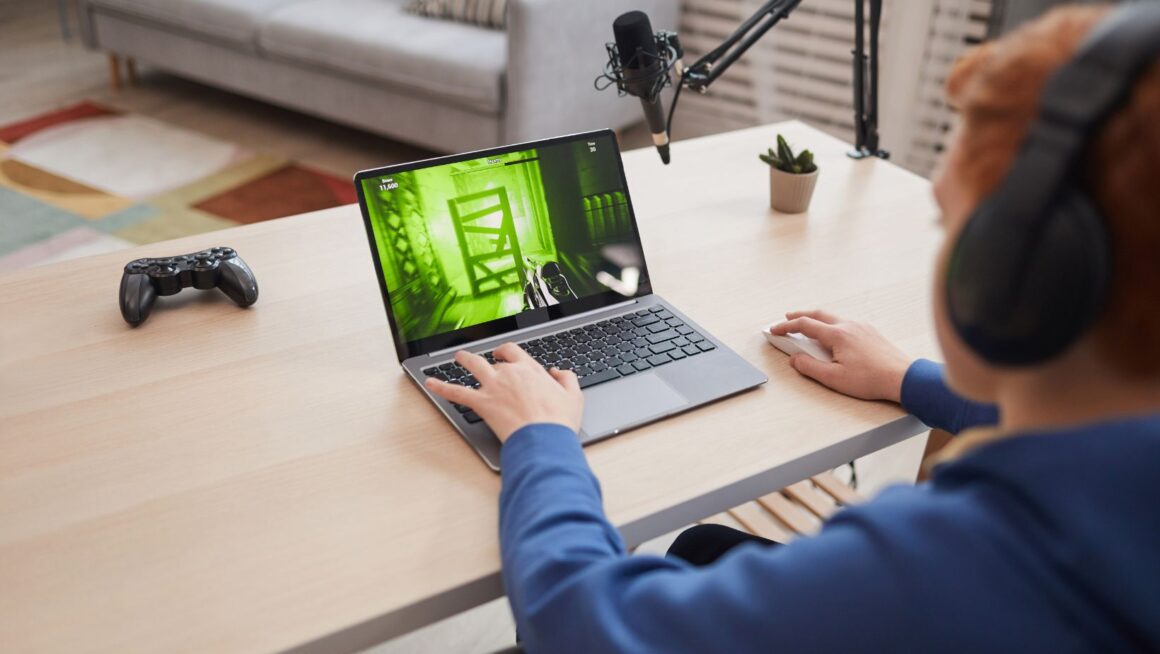
Here’s the test that ends arguments. Plug an Ethernet cable straight from the router into your PC and run Steam again.
If the problem vanishes, your wireless link was the villain, and you’ve got a placement or interference issue to solve. If the problem survives a wired connection, stop blaming your router. Your hardware is fine and the fault is upstream, either with your ISP or with the platform itself. That outcome is oddly freeing. You can close the router page, make tea, and wait.
A fair warning: don’t skip the cable because it’s inconvenient. A ten-metre Ethernet lead costs less than a takeaway and it settles the question faster than any speed test.
Why a clean connection matters beyond Steam
Steam is the obvious case, but the same triage applies anywhere real-time video or a live session depends on your line. Video calls, cloud gaming, streamed esports finals, live-dealer tables and mobile apps all punish jitter and packet loss more than they punish a slow headline speed.
Live video is the hungriest of the lot. A stable stream wants a steady few megabits and, more importantly, latency that doesn’t spike. A connection that benchmarks at 300 Mbps can still freeze a live feed if the Wi-Fi link drops packets every few seconds. That’s why the wired-versus-wireless test above belongs in everyone’s toolkit, whatever they’re streaming.
It also explains why the geography of online entertainment matters a little. Players in a state like Ohio only face this question on sweepstakes sites right now, because Ohio online casinos with real-money play aren’t legal yet, though a bill sponsor has pointed to 2027 as a possible window. Until then, the same latency habits simply carry over to whichever live or mobile experience you choose. Gambling involves risk, so play responsibly and only with money you can afford to lose.
Back to the main event.
Step 5: Know when to just wait
The hardest skill in troubleshooting is stopping. Once you’ve confirmed the platform status, tested DNS, tried a cleaner channel and plugged in a cable, you’ve exhausted the useful local fixes. Another reboot won’t change anything.
A few signs it’s genuinely on their end:
- Multiple unrelated people report the same error at the same moment.
- The problem is identical on wired and wireless.
- Only specific services fail (store, community, Cloud sync) while general browsing is fine.
When that’s the picture, go and play something offline. Your library has a backlog anyway.
The quick-reference order
Status checks first, then DNS, then router channel, then wired versus Wi-Fi, then patience. Print it if you like. It takes about fifteen minutes, and it stops you from resetting hardware that was never broken.
FAQ
How can I tell if Steam is down or it’s just my internet? Check an outage tracker and social feeds first. If many people report the same error, it’s the platform. If other websites load fine and only Steam fails, test DNS and try a wired connection before assuming your line is at fault.
Why does Steam Cloud sync fail when the store still loads? Steam runs several services independently. The store, community pages and Cloud sync can fail separately during a partial outage, so one working doesn’t prove the others are healthy. Wait and retry before touching your network.
Will changing my DNS server speed up Steam downloads? Not usually. DNS affects how quickly names resolve and whether connections start, not raw download speed. It fixes hanging logins and half-loading pages. For slow downloads, check your Wi-Fi channel and test a wired connection.
Should I always use Ethernet for gaming? Wherever you can, yes. A cable removes wireless interference from the equation and makes troubleshooting far simpler. If running one isn’t practical, move to the 5 GHz band and keep the PC close to the router.
How long do Steam outages normally last? Most partial outages clear within an hour, and routine maintenance windows are shorter. If problems persist beyond that, and a wired test still fails, contact your ISP in case the fault sits on their side.